Using the social approval system
The DealerVerse application has built-in capability to send social media posts to be approved by a social media approver, should it be necessary. To start the process of approval, create a new post or pull something from the social bank that was set up for you. For a full explanation of creating posts, refer to this article.
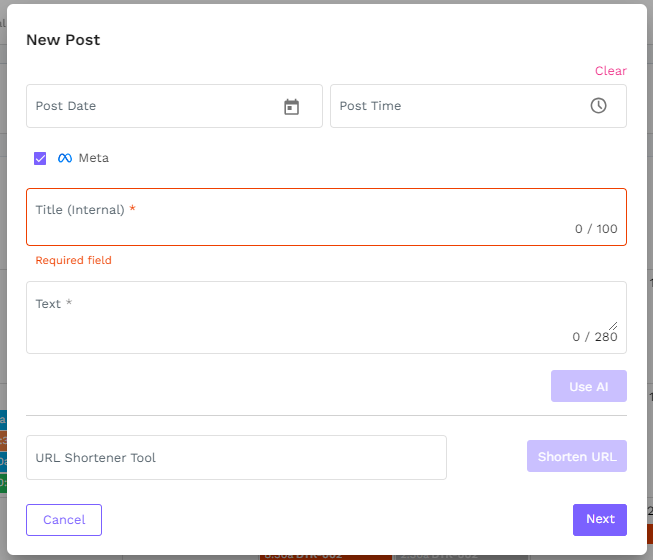
In order for a post to be sent for approval, a post date and time must be selected. Posting now means that approval is not required.
*Important note – if you wish to have a post approved, do not click the Schedule button as this will bypass the approval process.
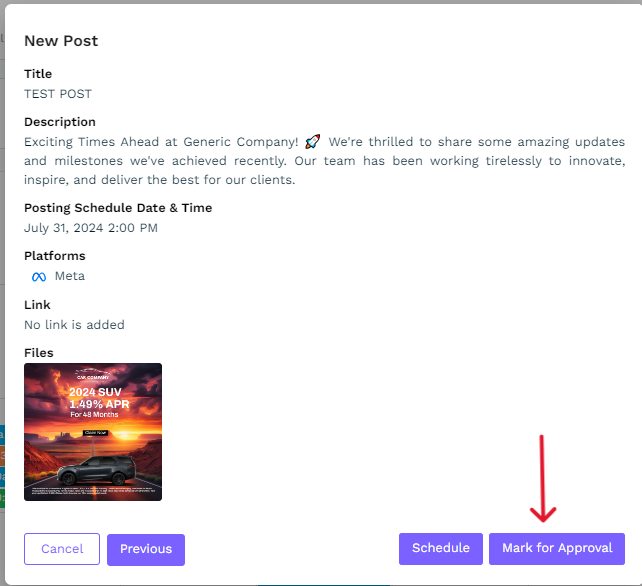
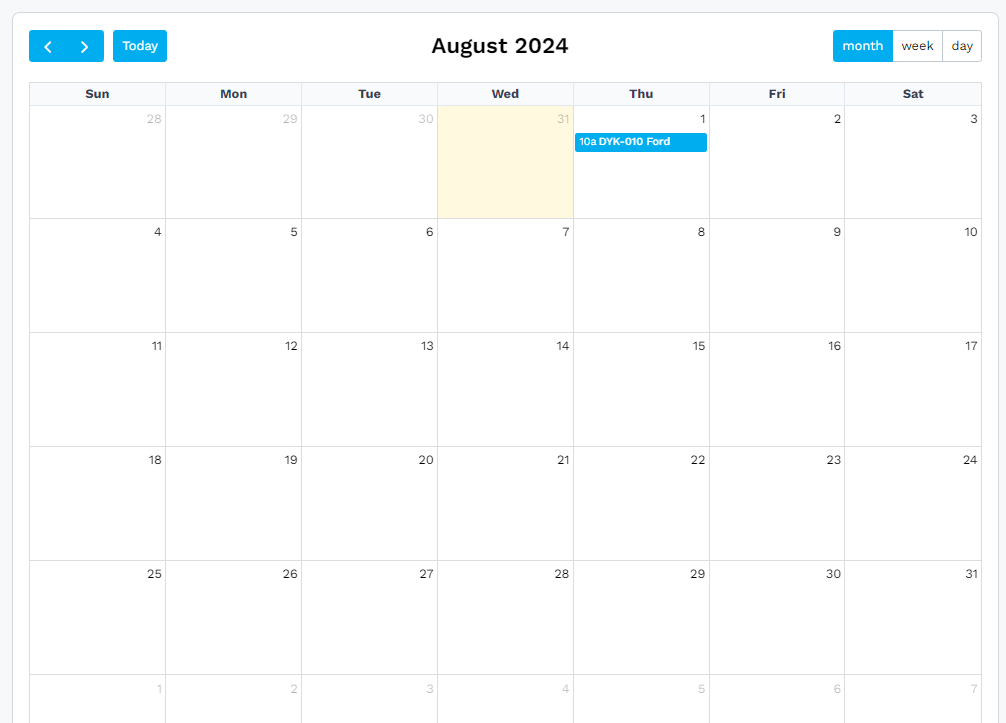
Once a post has been marked for approval, it will display in the calendar as gray, which means that it is in draft form.
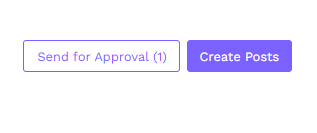
All posts that are marked for approval on the calendar will need to be sent to the approver all at the same time, so schedule all of the posts first and mark them for approval prior to clicking the Send for Approval button. Once all of the posts are ready and have been marked for approval, look for the Send for Approval button at the top right beside the Create Posts button. The Send for Approval button will display how many posts are awaiting approvals.
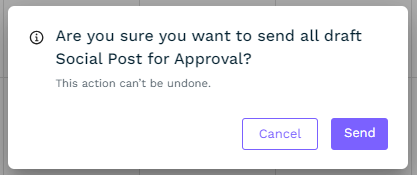
Once the button has been clicked, a confirmation pop-up will appear. Simply click the Send button to submit the post(s) to the social approver.
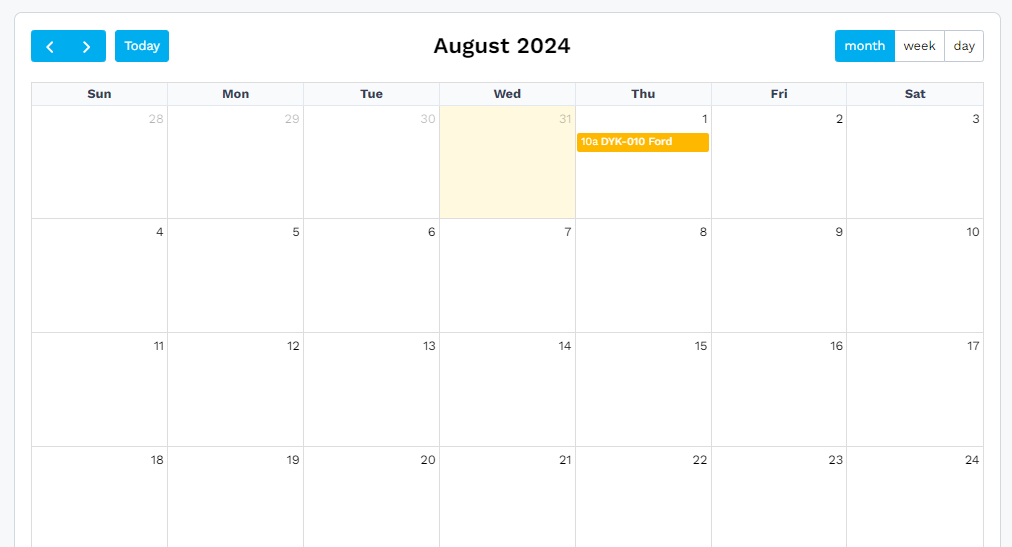
When the posts have been submitted, the posts will appear as yellow on the calendar to denote that they are pending approval.
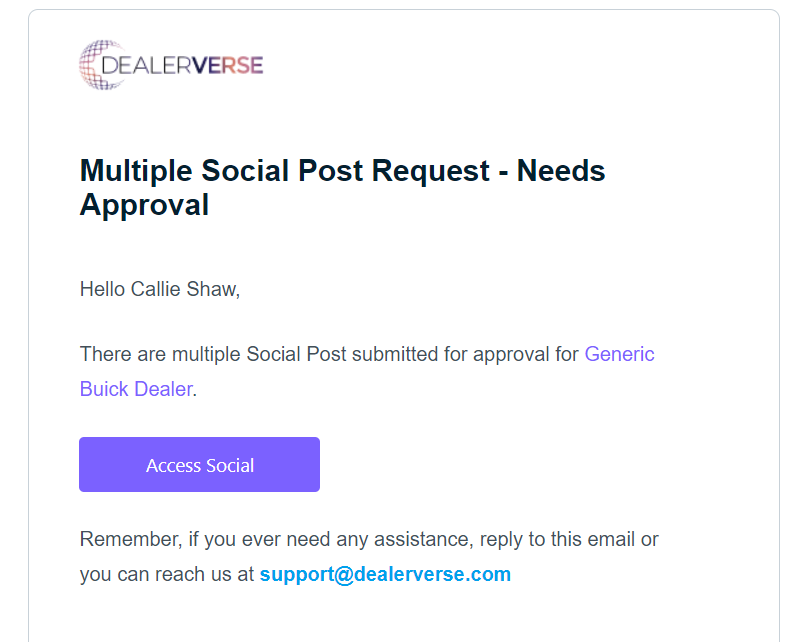
An email would then be sent to the user with the role Social Approver in the system, notifying them that social posts need to be reviewed and approved. The Social Approver would click the button in the email to be taken to DealerVerse where they would be given a visual of the different social posts requiring approval.
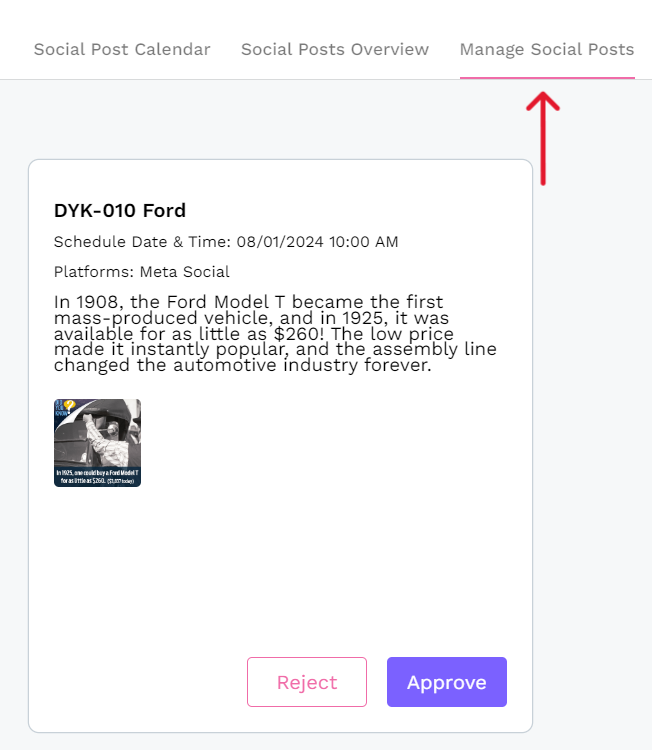
At this point, the Social Approver would review the post and either Reject or Approve the post. The Social Approver’s screen would then state that there are no social posts to approve at the moment.
A rejected post would be sent back to the social post creator to resolve any issues the approver saw. In the social calendar, the post would appear as an orange color, denoting that it needs to be revised. Clicking on the social post will open the details modal which will allow the user to now Edit the post or Cancel it.
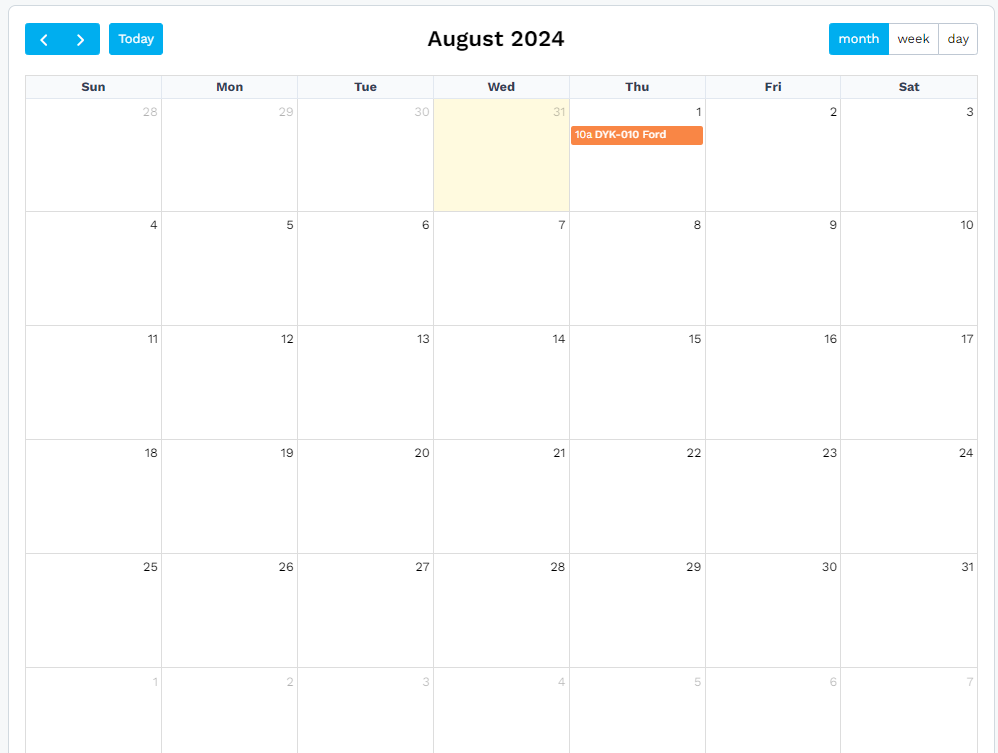
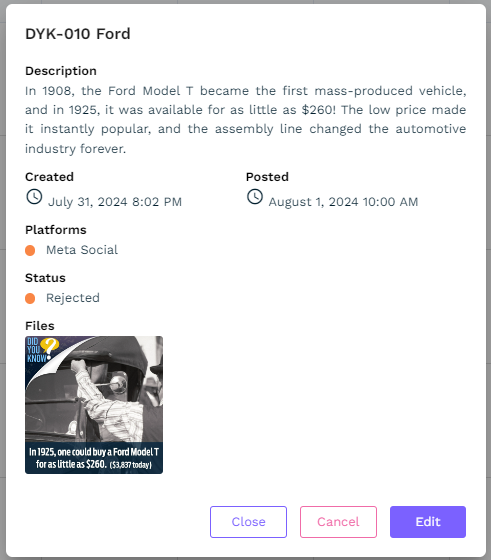
Once the appropriate changes are made, the post can be marked for approval again, which would follow the same steps as above. Once the Social Approver finally approves the post, the post will display as blue on the calendar, denoting that it is in scheduled status and will post at the selected date and time.