
Managing an SEM budget
DealerVerse has the capacity to house and manage an SEM (Search Engine Management) budget for PPC campaigns. For details about how to set this up in DealerVerse, please refer to this knowledgebase article. In this article, we will only discuss the day-to-day use of the Budgets module.
First, the Budgets module is not something that will be updated on a daily basis, but more on a monthly or even quarterly basis, however, there may be times when mid-month adjustments need to be made. Whenever that time comes, the budget can be edited using the Edit Budget button at the top right of the Budgets Overview tab. The Budgets Overview tab itself is a quick way to review what the gross and net ad spend is and exactly where the net spend is going. Additionally, any notes about the budget will be stored at the bottom of the page.
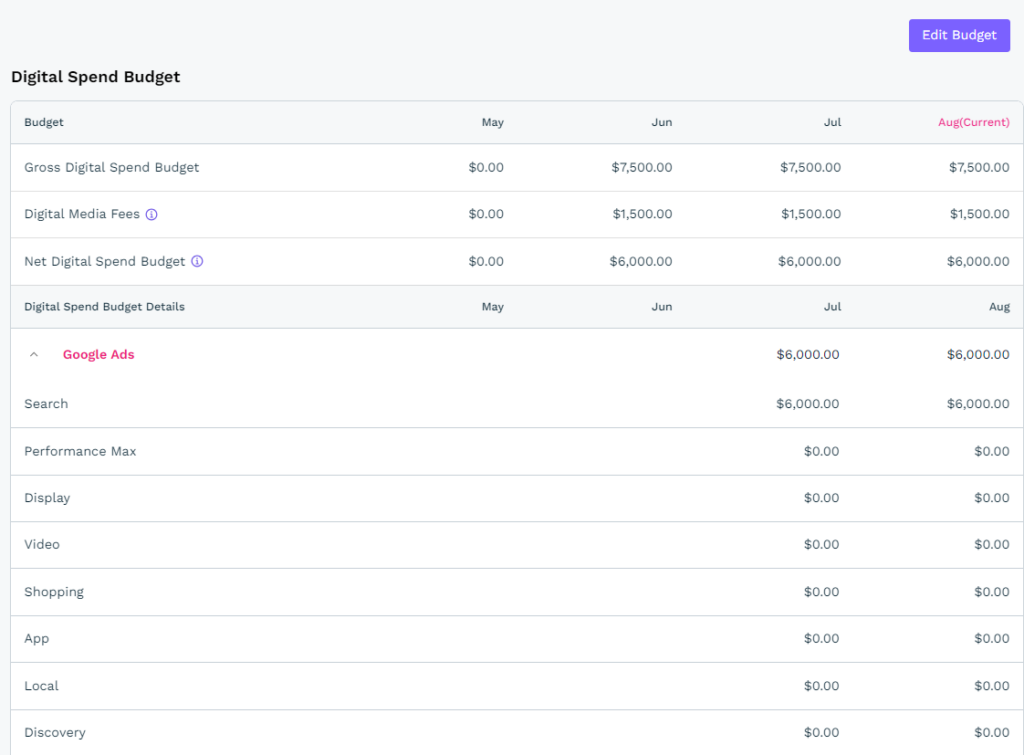
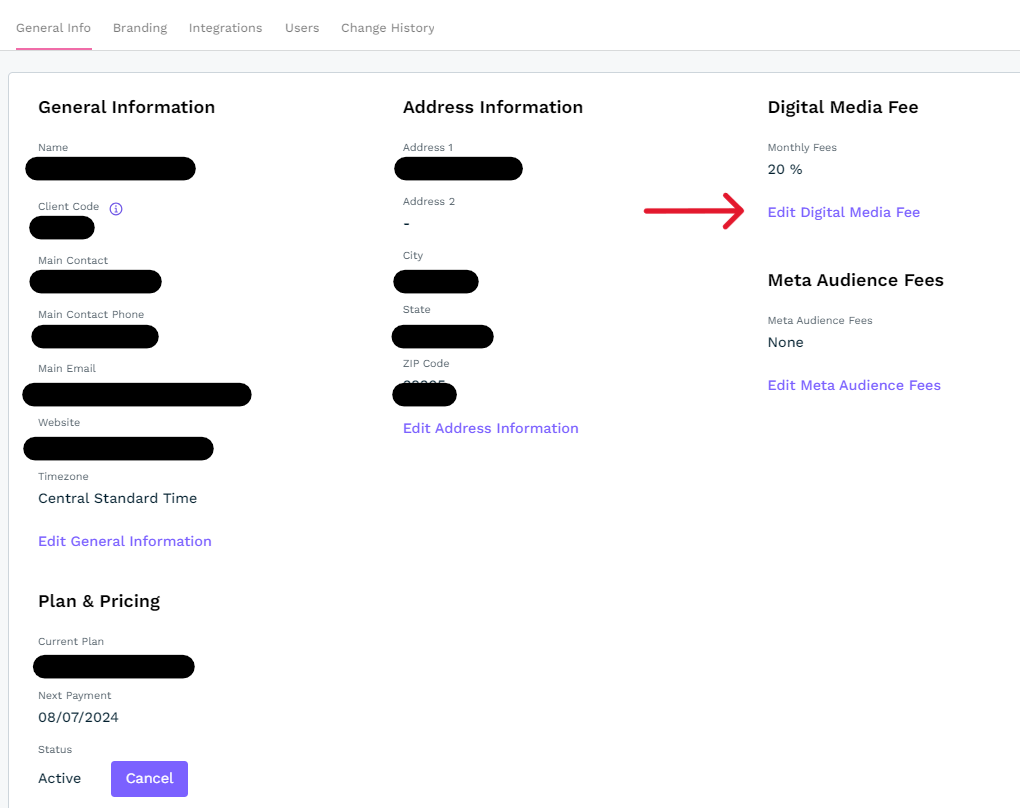
Under the Digital Spend Budget is the Gross Digital Spend Budget. If the gross budget must be adjusted up or down, click the Edit Budget button and then make the necessary adjustments. The Digital Media Fees and Net Digital Spend Budget cannot be edited. They will self-adjust as you adjust the gross digital spend. Additionally, the Digital Media Fee is set during the DealerVerse sign-up process, but can be adjusted in the Clients > General Info tab.
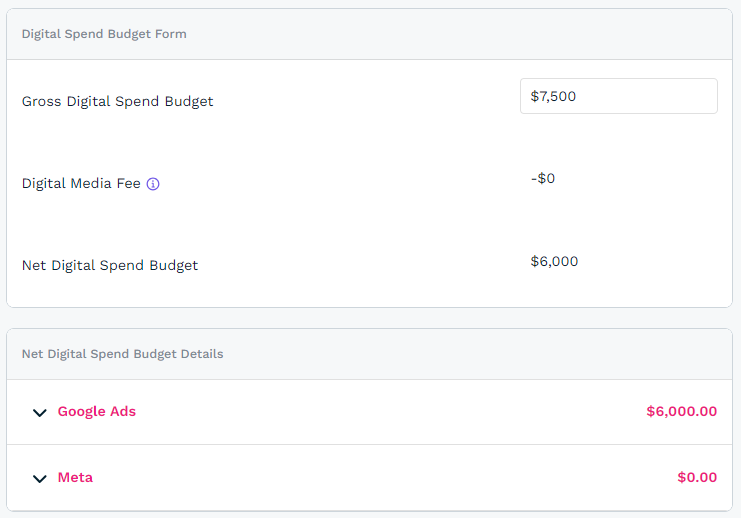
Below the Digital Spend Budget Form is the Net Digital Spend Budget Details. This section takes what the Net Digital Spend Budget is (i.e. $6000), and breaks it down into Google Ads, Meta, and Bing Ads campaign spends.
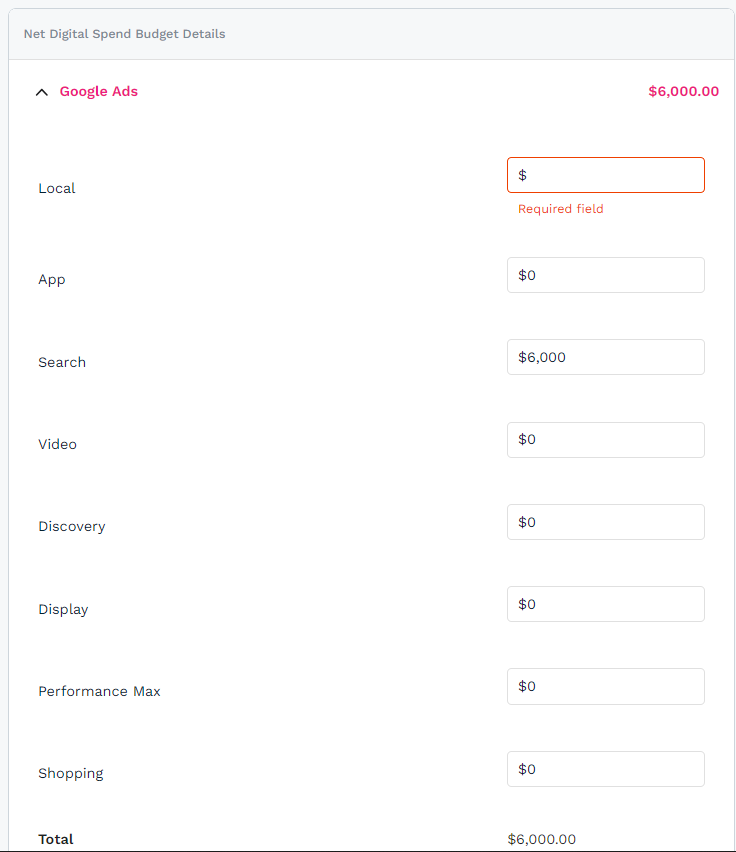
The numbers at the top of Google Ads, Meta, and Bing Ads in pink are not editable. They are the sum of the individual net budgets for each campaign in their respective platforms. It provides an at-a-glance way for account managers and budget approvers to see what the total net amounts are for each platform without expanding the sections.
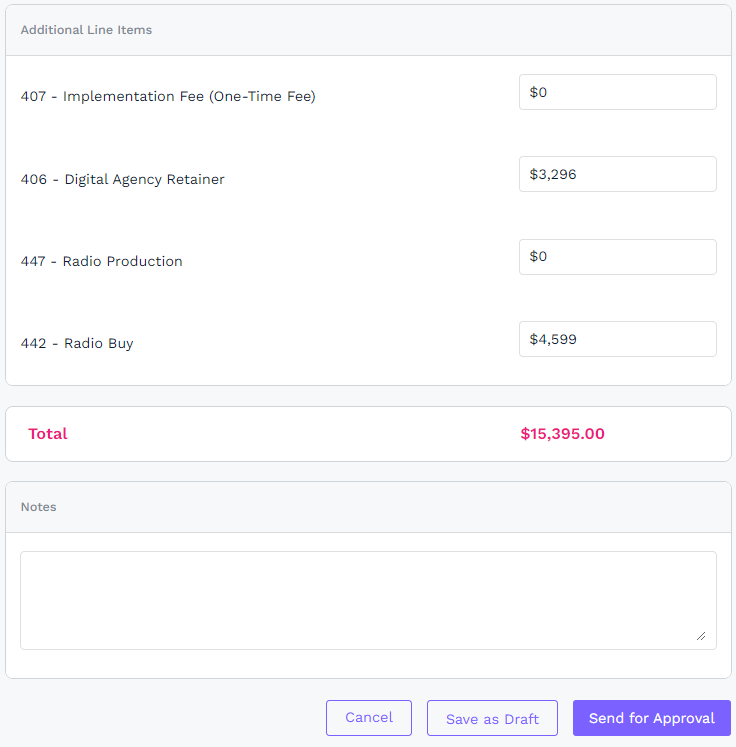
Below the net breakdown section is the Additional Line Items section where additional amounts can be factored into the total. These may include other paid advertising platforms that aren’t included in the standard set, or it may include other line items like traditional media that you would like to include in your monthly paid advertising budget.
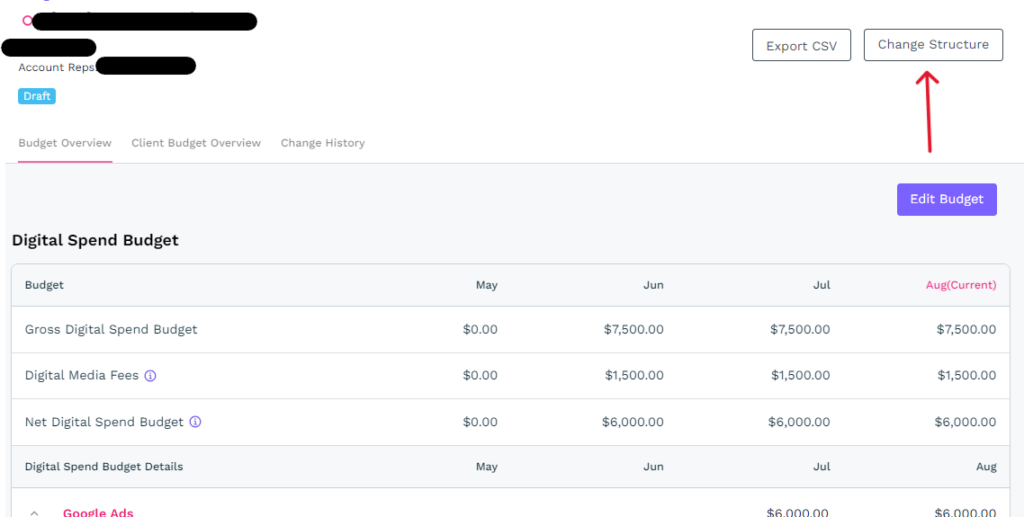
You have the ability to change the additional line items by clicking the Change Structure button in the upper right hand corner of the Budget Overview tab.
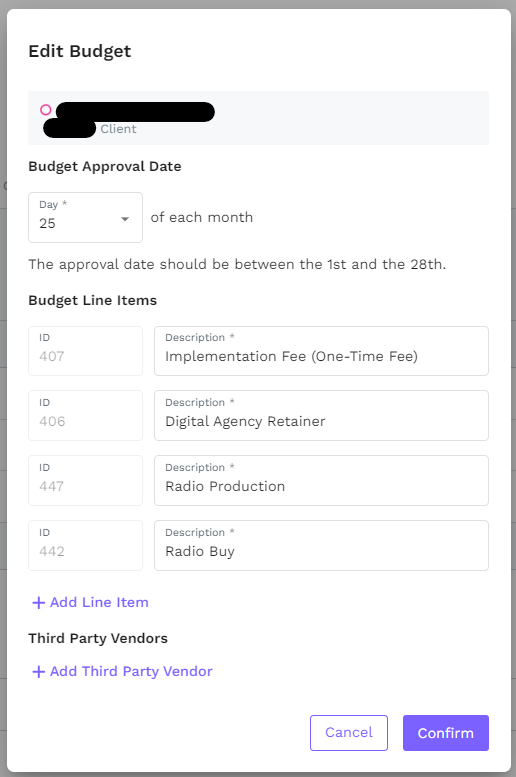
From this new pop-up, you can select a date that the budgets will need to be approved each month. You can also change the names of the additional line items or add new ones. Additionally, you will be able to add third party vendor lines, if needed. Simply Confirm your changes when complete.
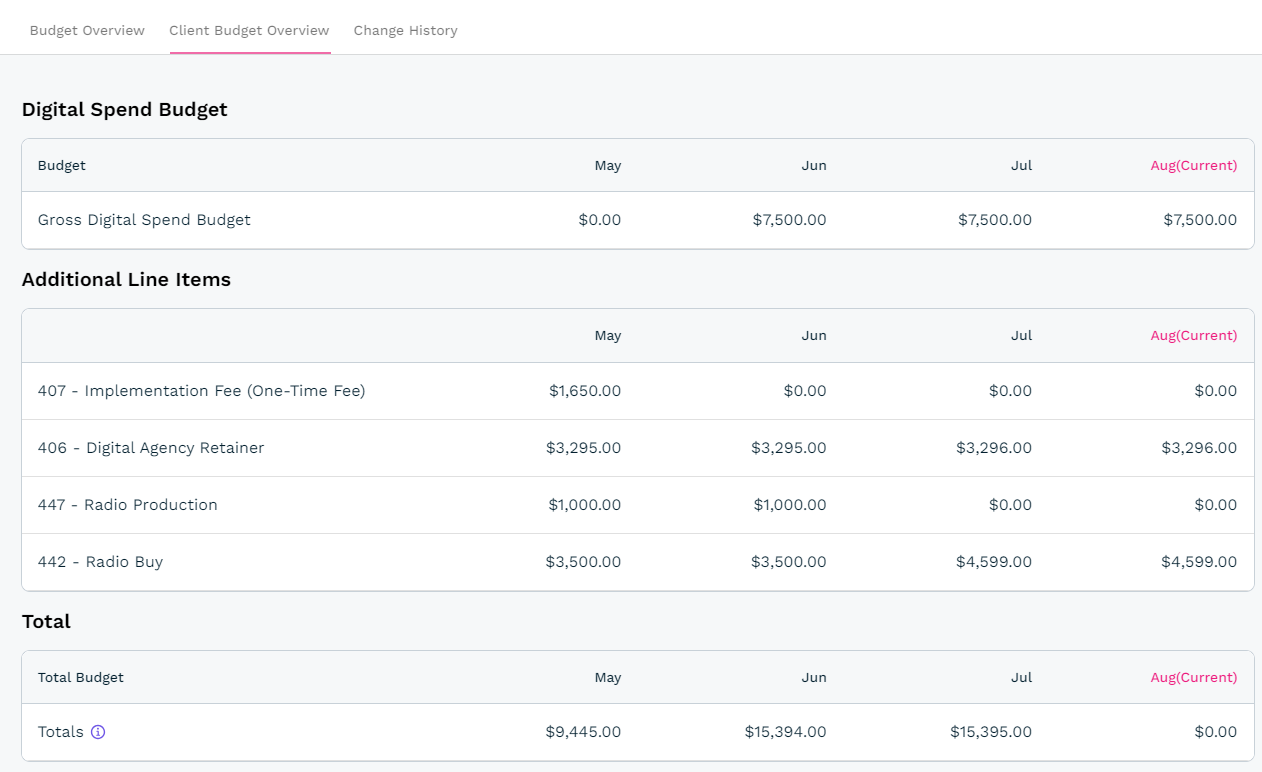
The second tab, Client Budget Overview is simply a snapshot of the overall budget without the details of the SEM budget. An Export CSV button allows users to download the budget into a comma separated file for easy sharing.
The Budgets module does allow for budgets to be approved by a budget approver every month, but that will be covered in this article.