
Exploring the budget module
Budgets are associated with a specific company or client account. The enterprise level can only assign budgets to one of those two account levels, therefore, looking at the Budgets page from the enterprise level will list any budgets that have been created within the account hierarchy.
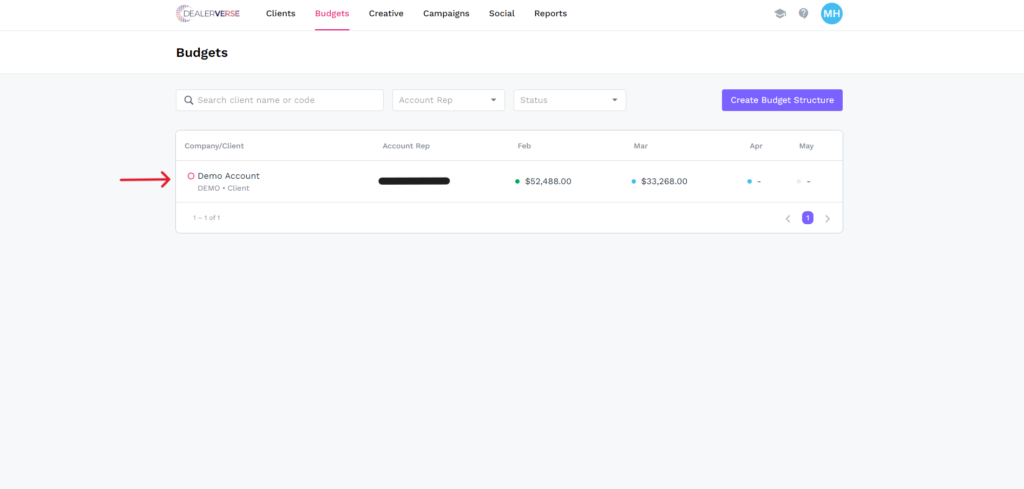
Budget Overview
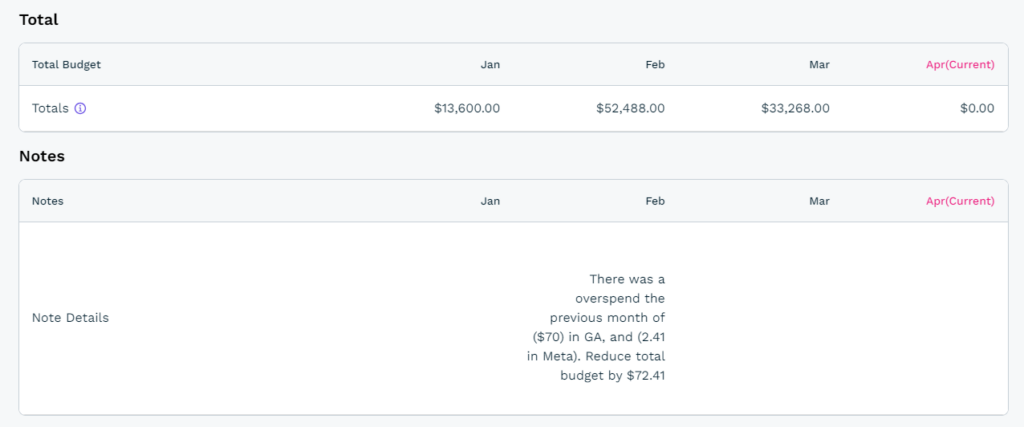
If you need to create a new budget, click the Create Budget Structure button at the top right. To access the account level budget, simply hover over it and click. Once you’ve clicked on the account level budget, the Budget Overview tab will be displayed showing the digital ad spend budget. This is the view that the Self Service Admin would be using to manage a client’s paid advertising campaigns.
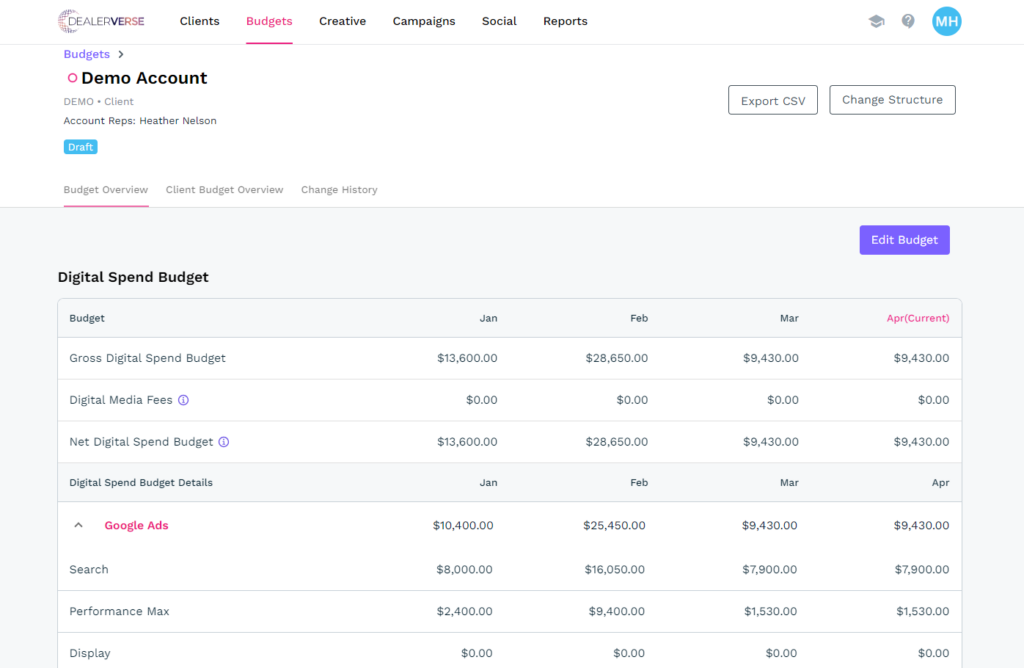
At the top of this page are three buttons: Export CSV, Change Structure and Edit Budget. Let’s explore these three options before continuing on.
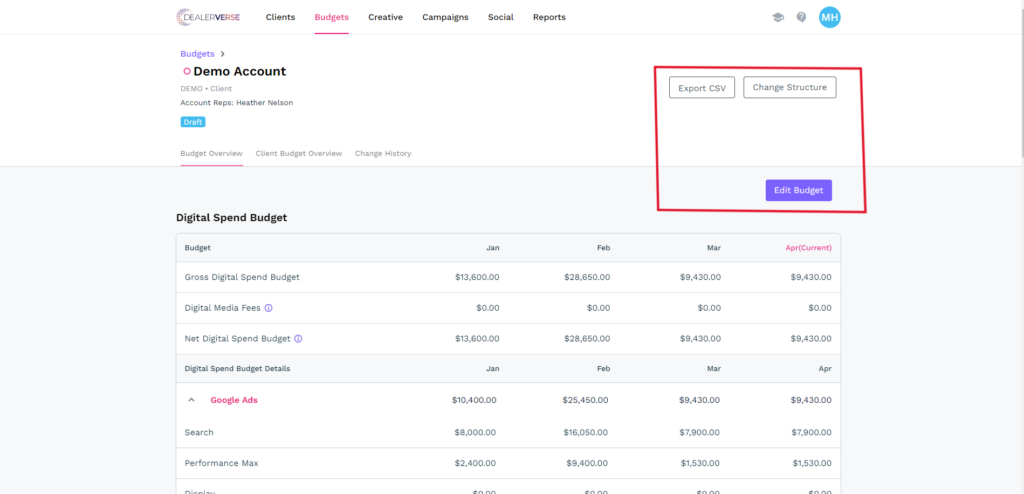
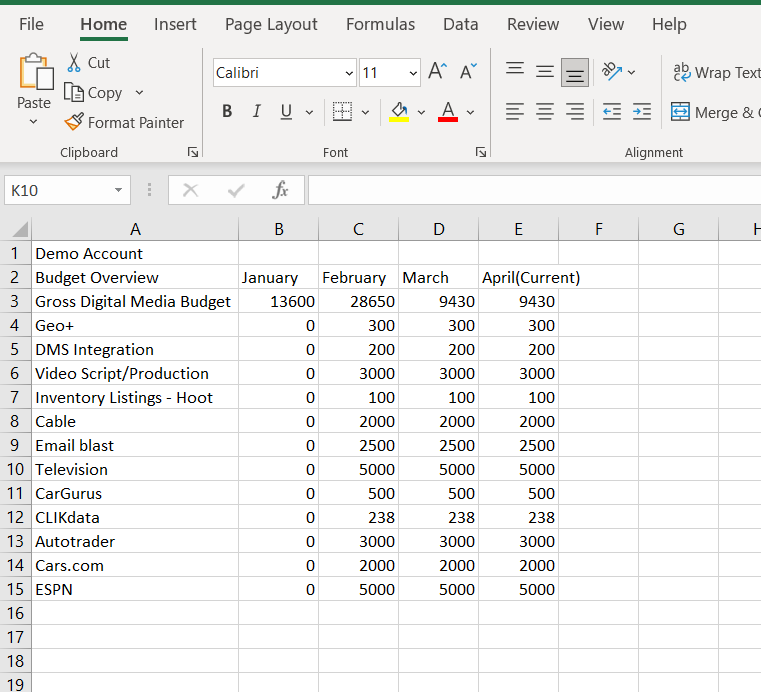
Export CSV generates a comma separated values file type that can be opened with a text editor or a spreadsheet application like Microsoft Excel or Google Sheets. This allows the user to see the historical budget in one quick view.
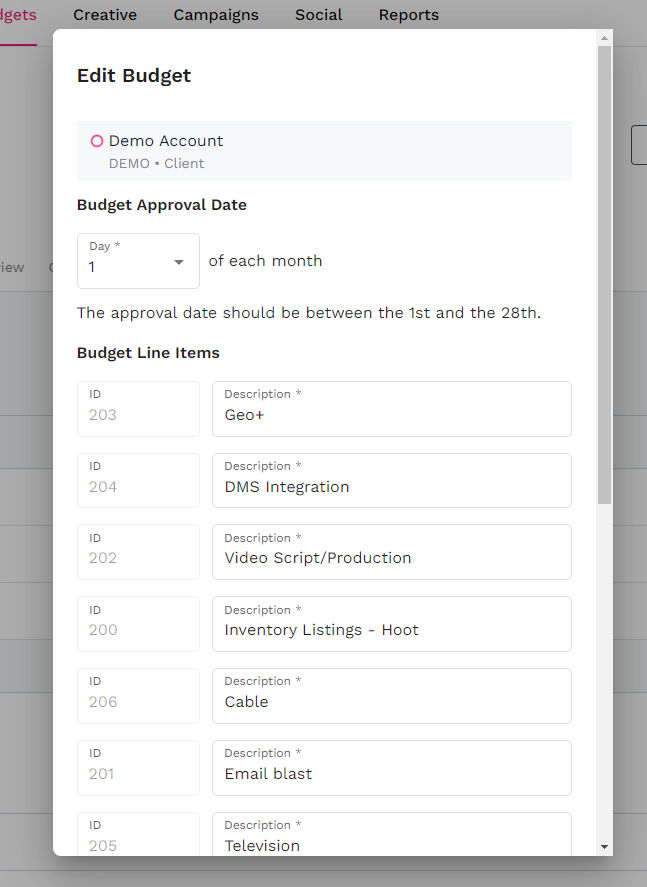
The Change Structure button allows users to change the Budget Approval Date and the Budget Line Items descriptions, and add new line items through a pop-up window.
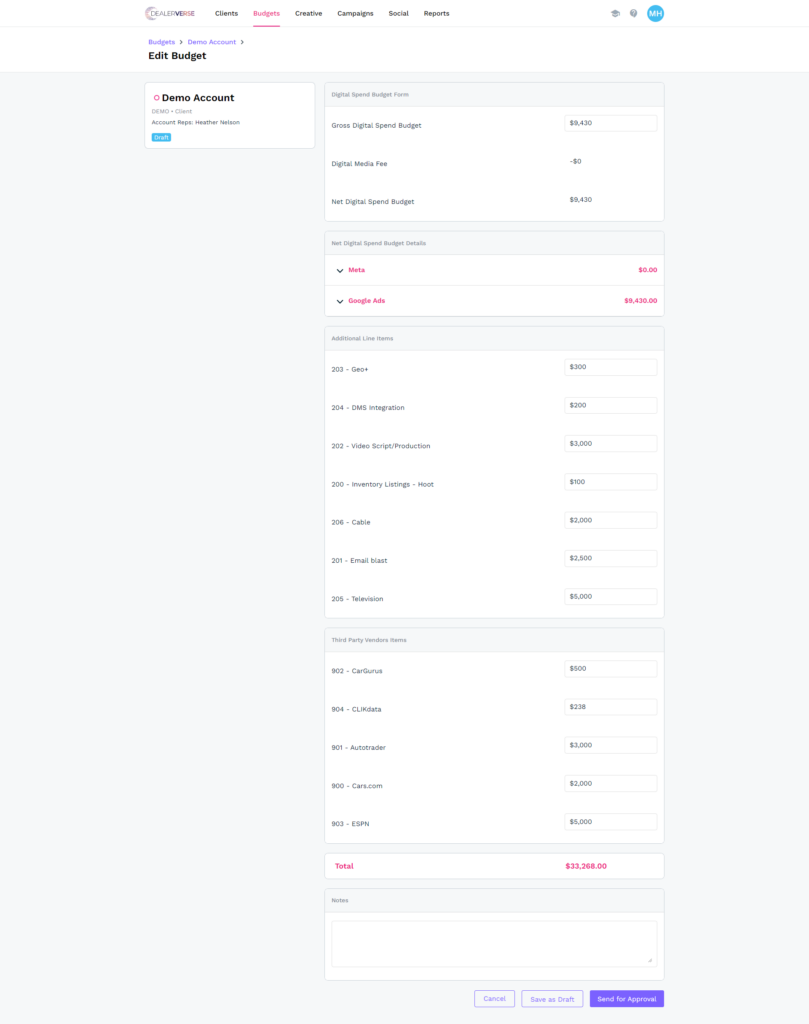
The Edit Budget button allows the user to edit the gross spend and all the additional line items. This gives the administrator control over all aspects of the ad spend budget. The new budget will have to be sent to the budget approver again before it can be published.
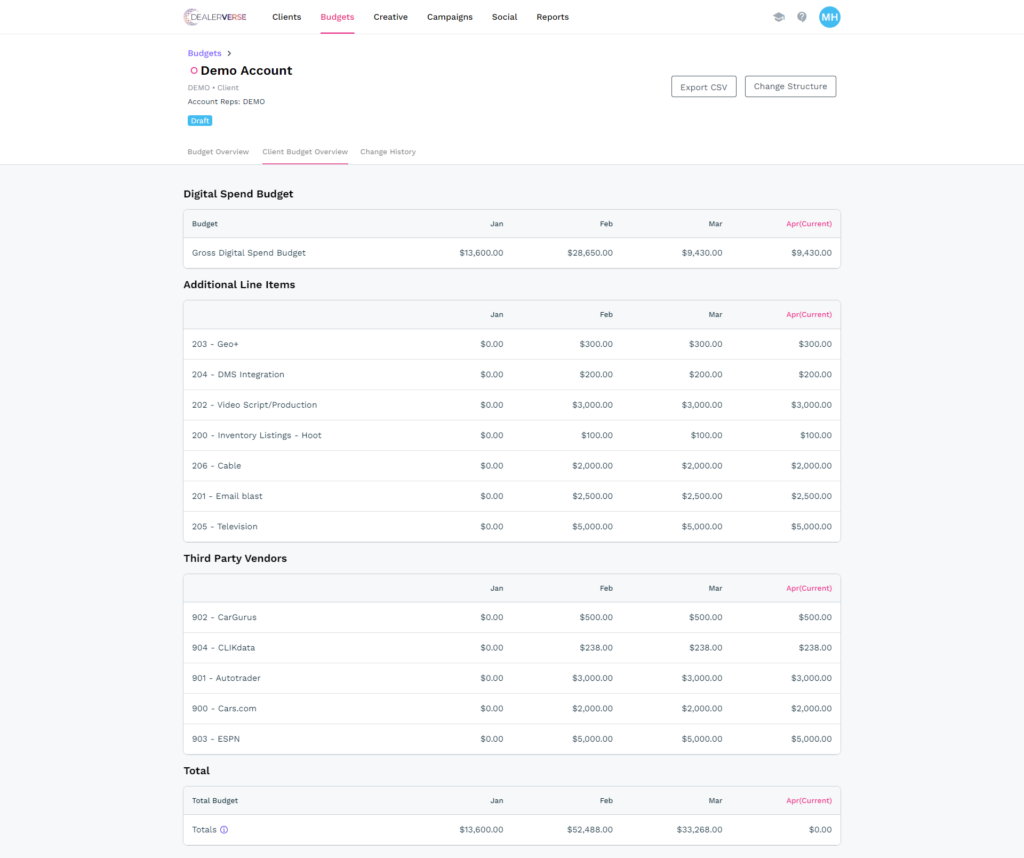
Client Budget Overview
The Client Budget Overview is simply another way to look at the same data, but without the breakdown of the specific ad campaigns. This is the view the client would use if a Self Service Admin was managing their paid advertising for them, and it would be based on permissions. This view does permit the end user to export the budget to CSV and to change the budget structure, but it does not allow the end user to edit the budget amounts as with the Budget Overview page.
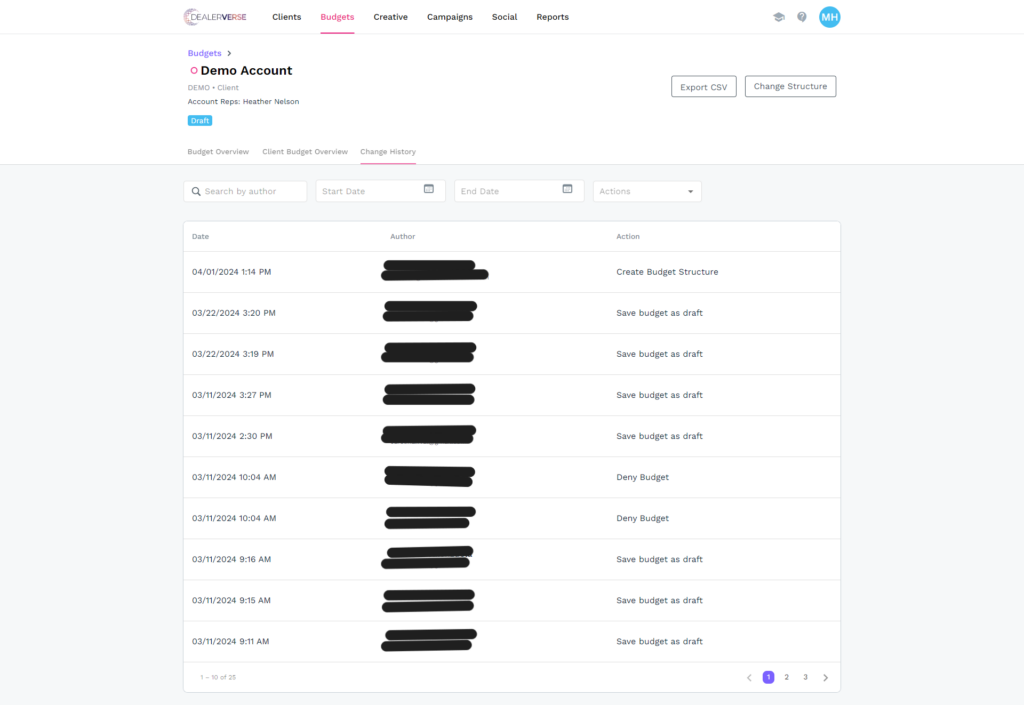
Change History
Once again, this tab will be visible based on permissions. Self Service Admins will be able to see the date and time of any changes in the budgets, the user that made the changes, and the action that was taken during that change. This page also gives searching and filtering functionality to make activities easier to find.
For details on the process of setting an ad budget up, please refer to this KB article.