Exploring The Clients Module
Overview
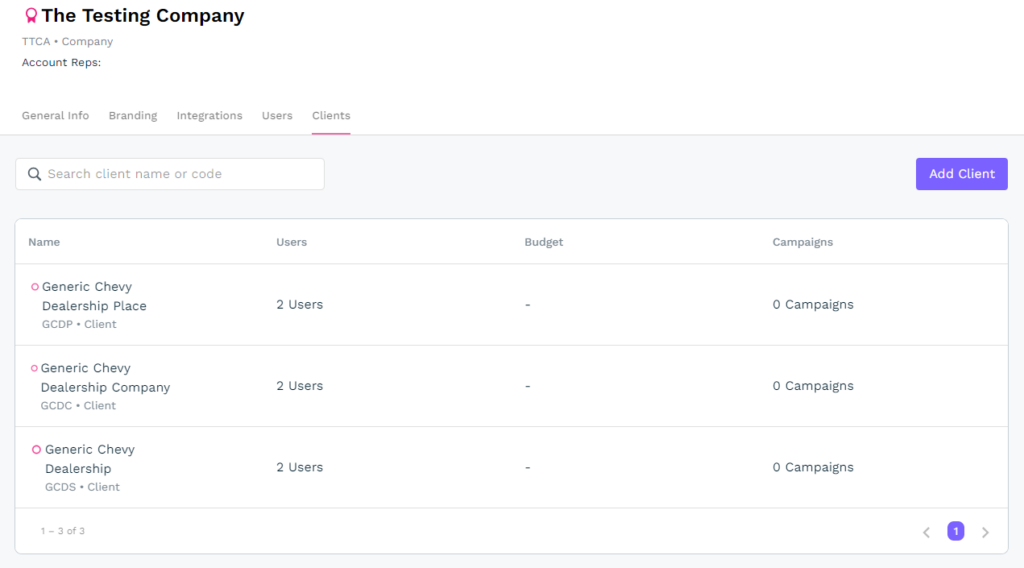
The Clients module is used to manage these 5 components: general info, branding, integrations, users, change history, and clients. We will look at each of these aspects individually so you can fully understand the relationship between these components and how to use them.
*It’s important to note that while not in a specific account, none of these tabs will be visible. It’s only when a company or client has been selected that these tabs will be visible.
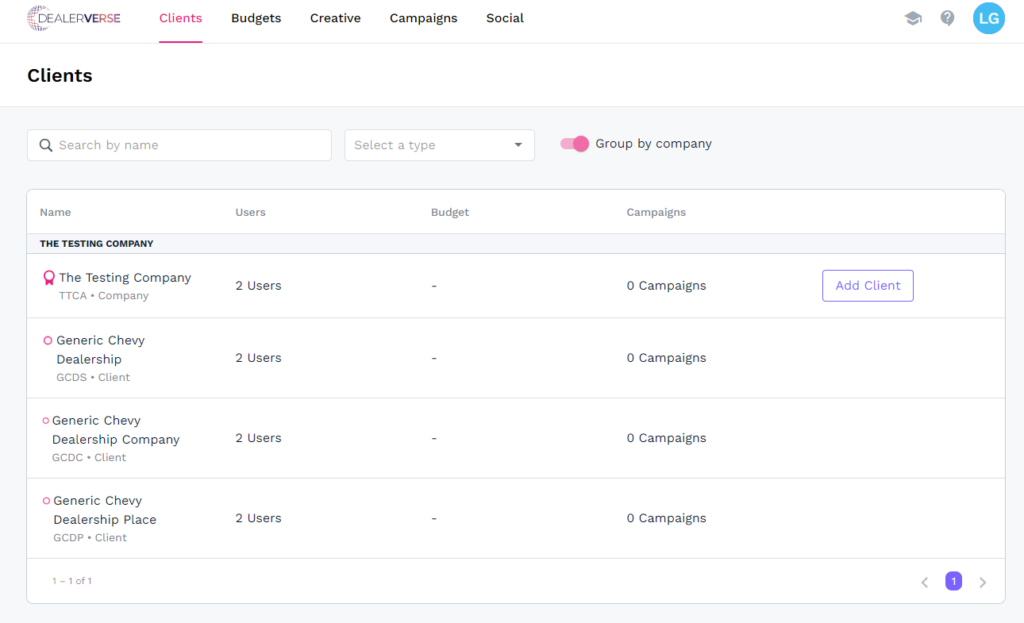
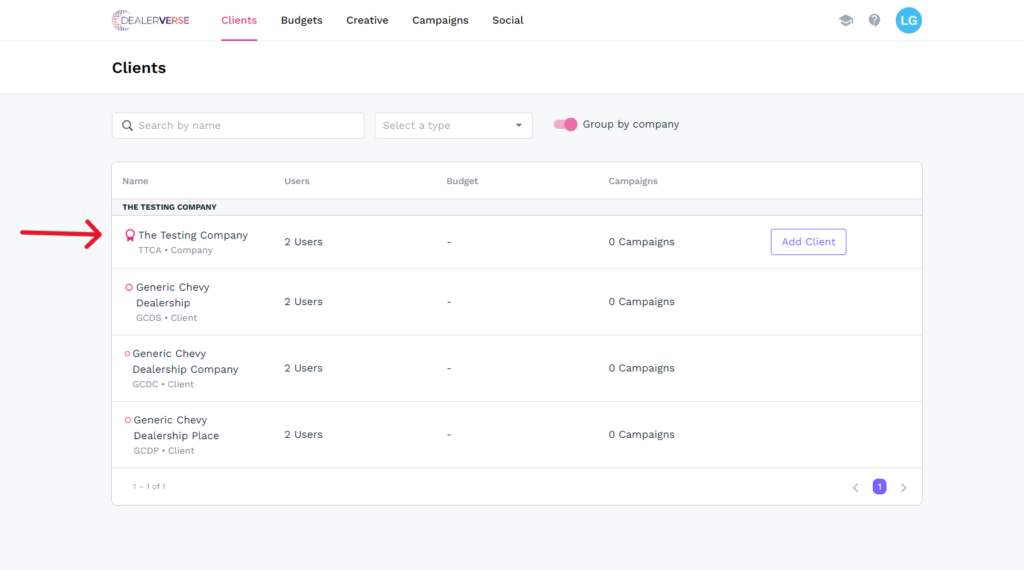
Depending on whether a company or client was selected, specific tabs will be permission based and visible. A client will not have permissions to the clients tab since it is a client and cannot create or manage other clients. A company, on the other hand, must have permission to view, add, and edit clients. For a clear understanding of the “Company” and “Client” relationship, refer to this FAQ.
– When a company is selected, the following tabs will be visible depending on user permissions: General Info, Branding, Integrations, Users, & Clients
– When a client is selected, the following tabs will be visible depending on user permissions: General Info, Branding, Integrations, & Users
General Info
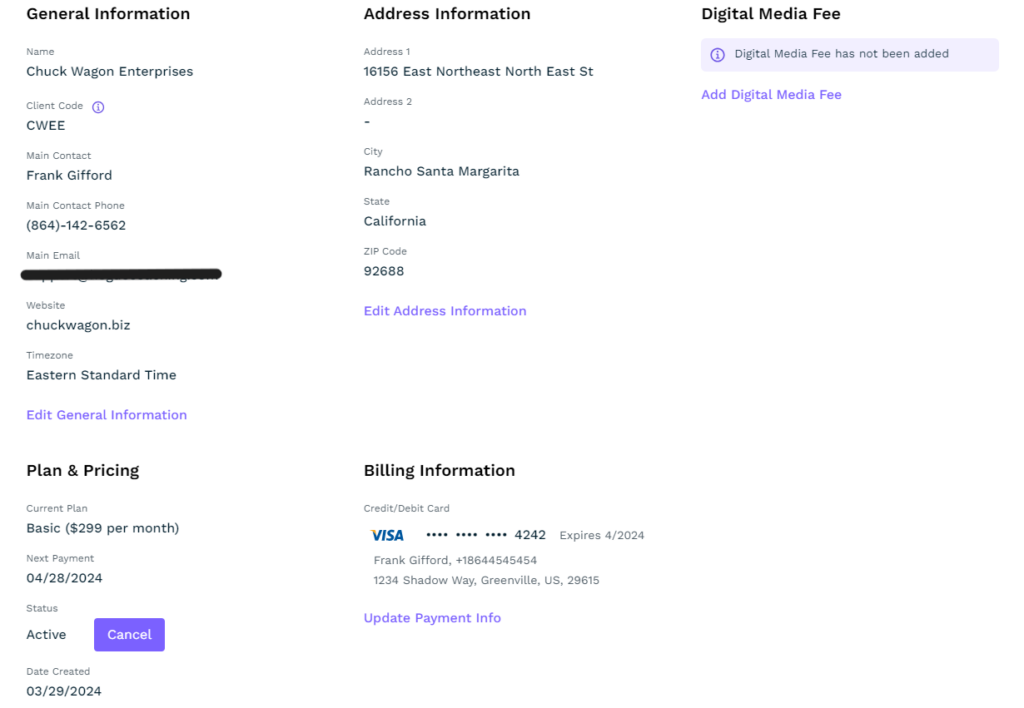
This is where all company or client information is stored, including the business name, client code, contact name and number, contact email, website, and address information. This is also where the plan and pricing are set and where the billing information is stored. To edit any of these sections, simply click on the edit links at the bottom of the sections and a pop-up window will appear where the changes can be implemented. If you want to cancel your DealerVerse account, there is a “Cancel” button under the Plan & Pricing section. If you’d like to change your credit card, you can follow the steps in this FAQ.
Branding
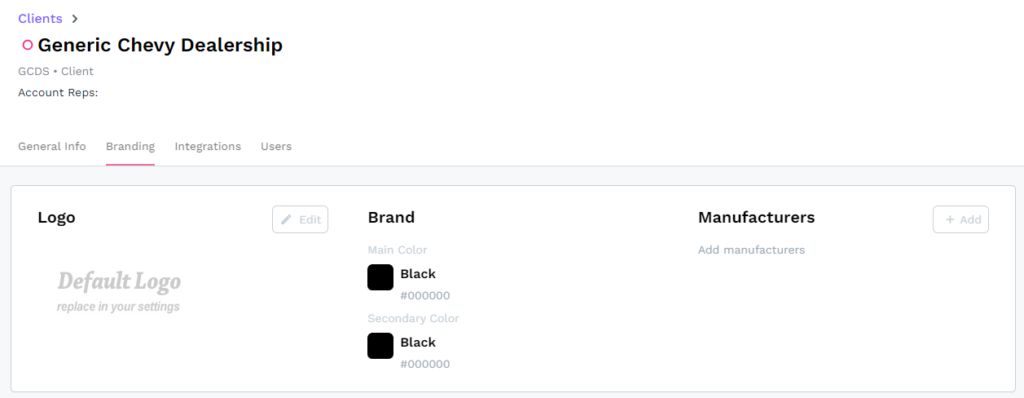
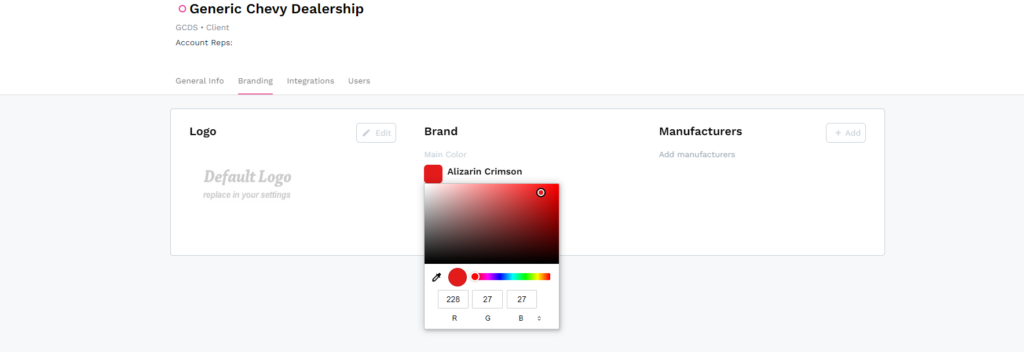
This tab allows users to add a dealership logo, brand colors (in RGB), and add the manufacturers they represent.
– To add a logo, just click on the “Edit” button and select an image from your hard drive.
– If you have your RGB color codes, you can set the 2 main colors under the “Brand” heading.
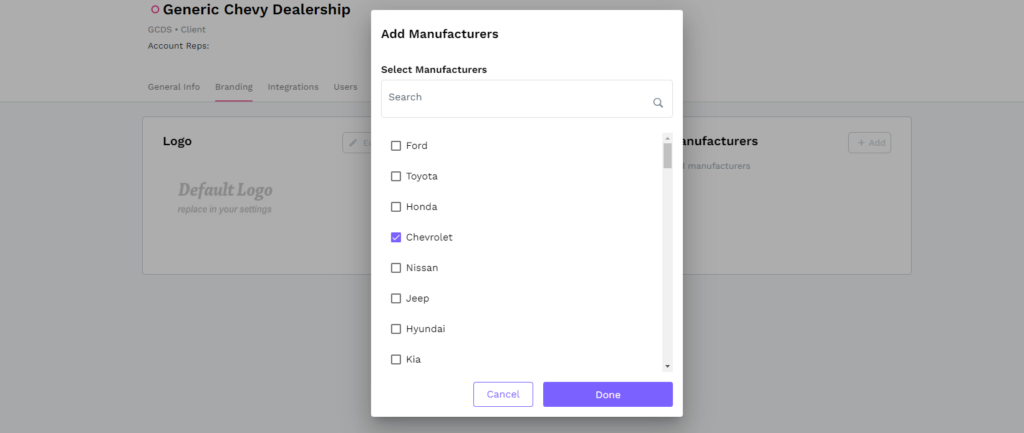
– When you click on the “+ Add” button under “Manufacturers” and a pop-up window will appear. From here, you can select the manufacturers that the dealership sells and then click “Done”.
Integrations
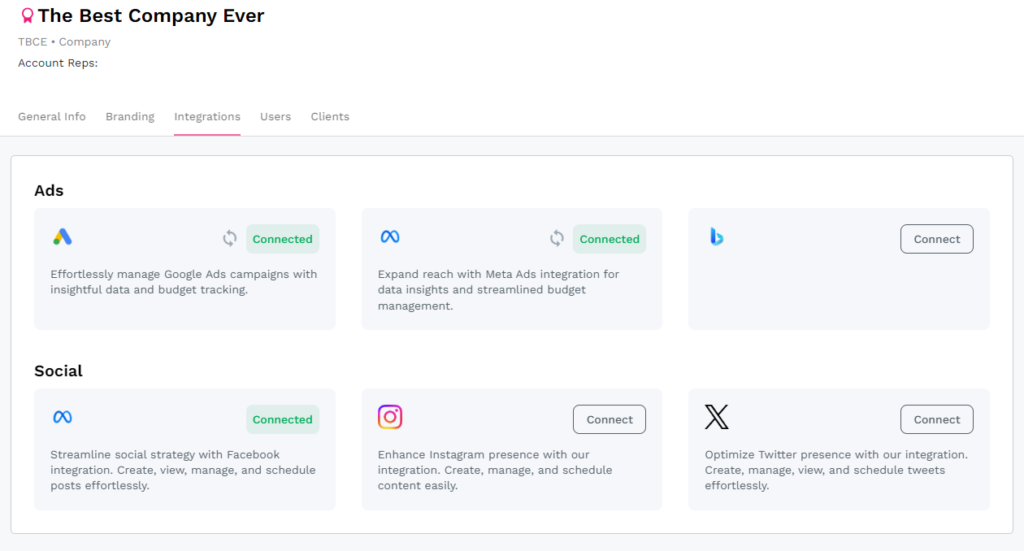
The integrations tab consists of 6 other applications that the company or client can integrate with, 3 for ads accounts and 3 for social media accounts. Paid ads accounts consist of Google ads, Meta ads, and Bing ads. Social media connections consist of Meta (Facebook), Instagram, and X. To integrate your DealerVerse account with one of these accounts, simply click on the associated “Connect” button. A pop-up will appear requesting the username/account id and password for the requested account. Once those credentials have been entered and confirmed, the DealerVerse API should connect to the application API and nothing further should be required.
To disconnect an existing connection, simply click on the green “Connected” button.
Users
The users tab allows administrators to add, edit, deactivate, or remove users.
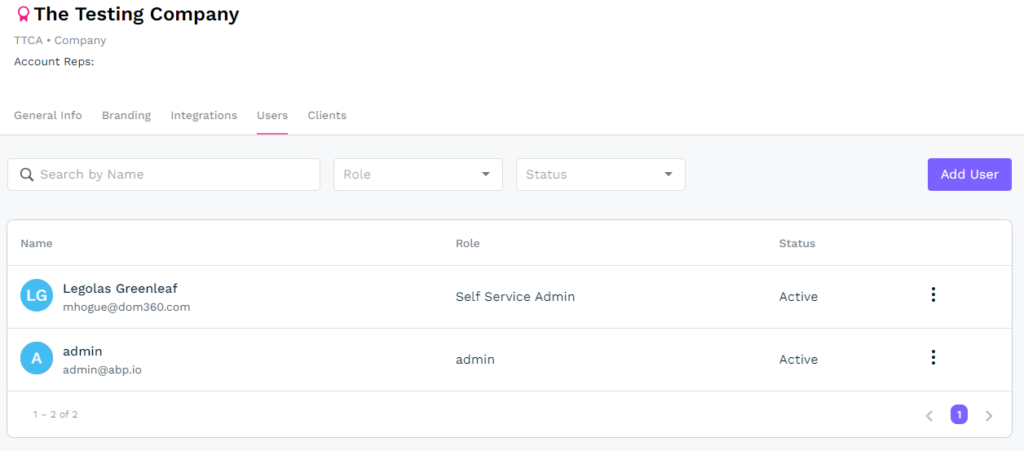
To edit, remove, or deactivate a user, click on the 3 vertical dots to view the pop-up menu. Clicking “Edit” will allow you to change the first and last name, phone number, and role. The email is the one data point that cannot be changed.
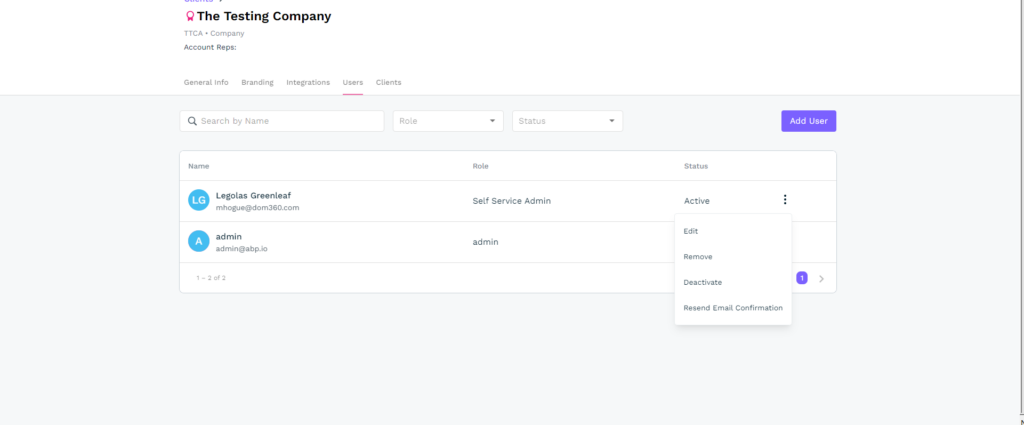
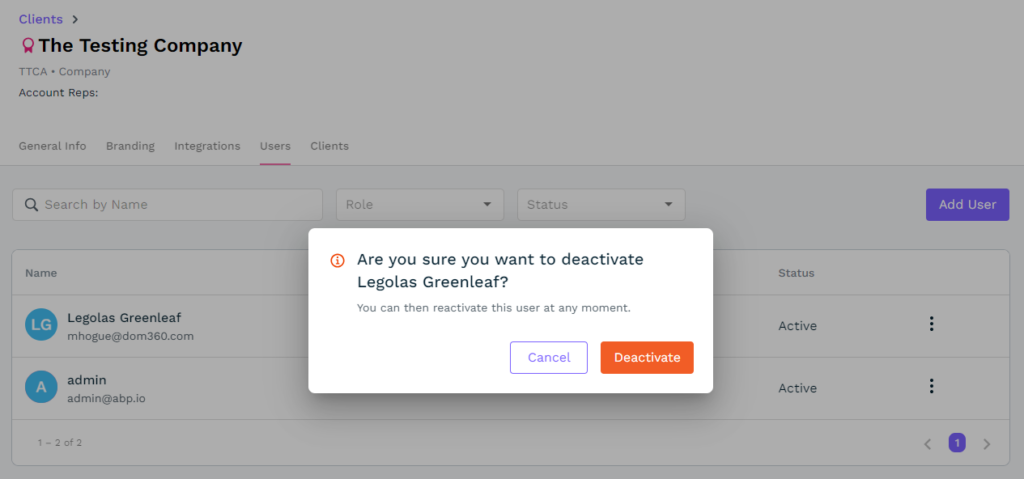
If you need to remove or deactivate an user or resend a confirmation email to them, the system will pop a window up asking for confirmation first. Deactivating an user can be undone, but removing an user cannot be undone.
Clients
The Clients tab is used to manage any sub-accounts or clients underneath the Company. Again, if the user initially selected a client to view instead of the company, this tab would not be visible. In order to edit an existing client, simply click the client you’d like and it will redirect you to the General Info tab where you can make edits. In order to add a new client, simply click the “Add Client” button and fill out the pop-up form.