Managing social posts
Within the social module is the ability to not only create social posts, but to manage them from DealerVerse without needing to log into your social media platform. This functionality is available to users with the proper roll and permissions. If you are not able to view or interact with this tool, please reach out to your system admin.
Access the Social tab at the top and you should see 2 tabs; Social Post Calendar and Social Posts Overview.

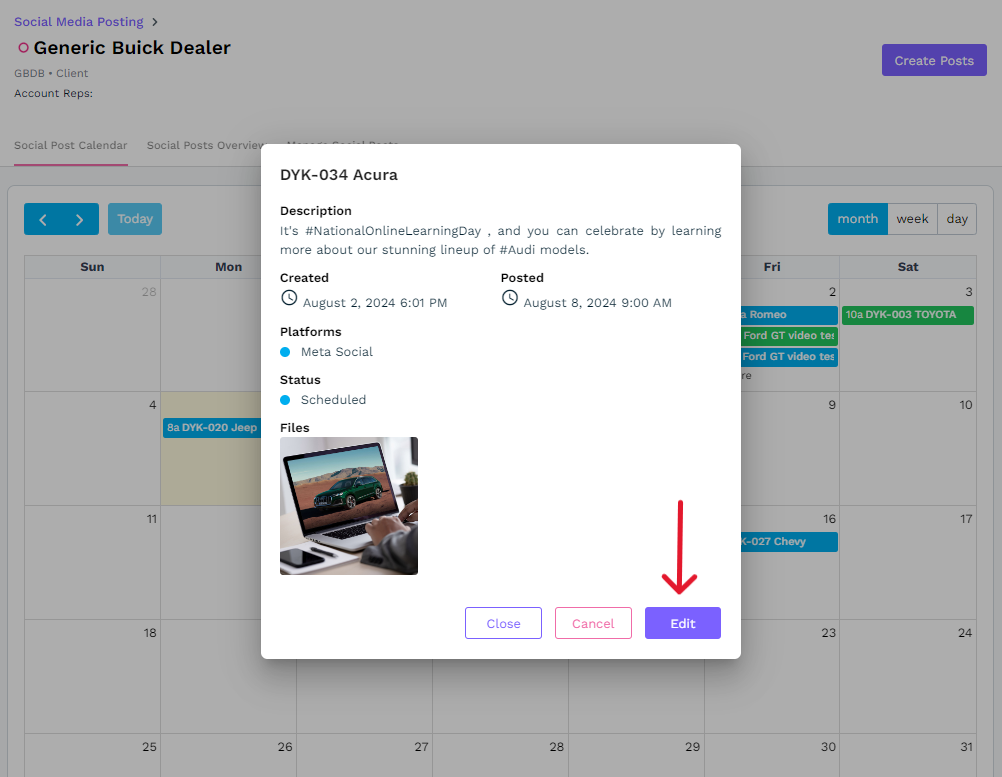
Within the Social Post Calendar, you are able to click on a post to see the details and edit it as long as it hasn’t posted yet, but after it has been posted, you will need to access it from the Social Posts Overview.
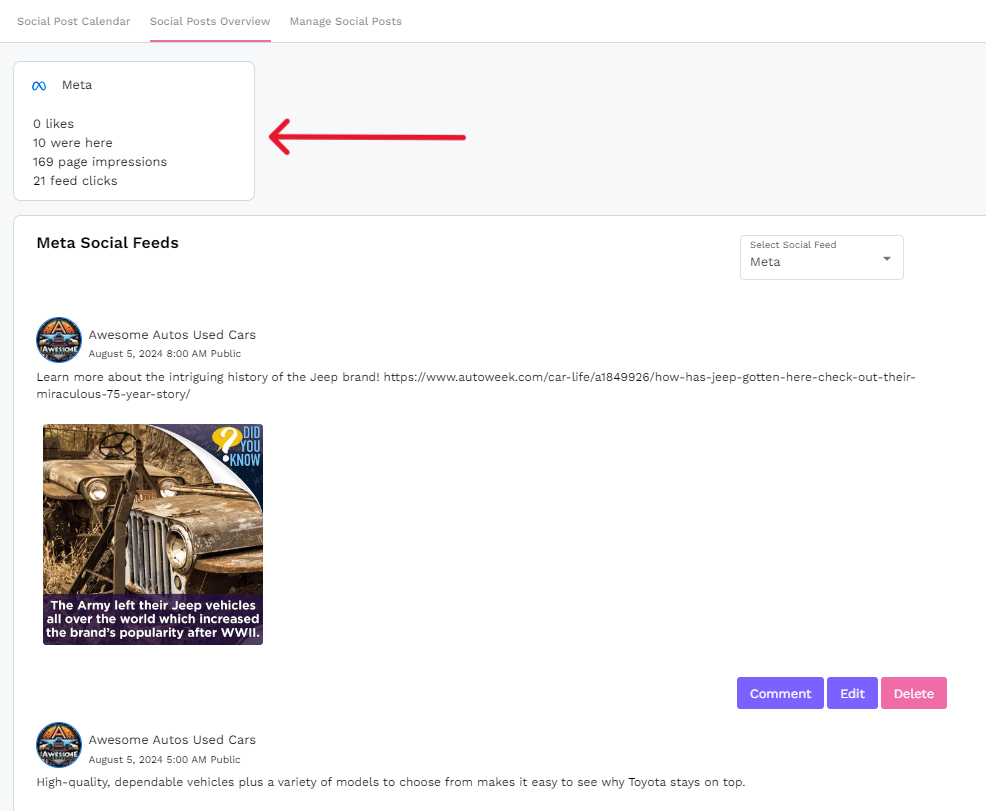
In the Social Posts Overview, your posts will be displayed in the order they were posted to social media. At the top of the page, you’ll notice some a metrics summary from your Facebook, Instagram, or X page. These metrics are brought in from the X or Meta API and displayed here for your convenience.
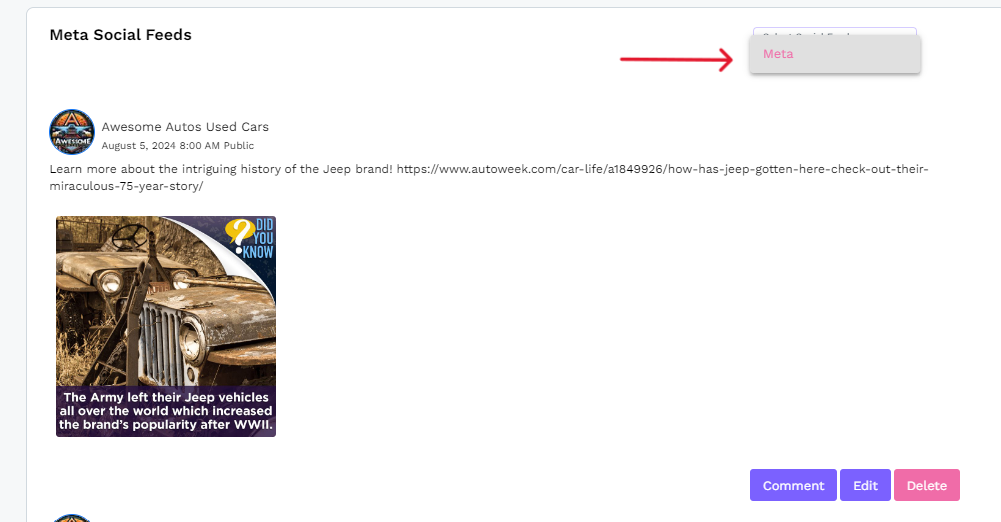
Below this, you will see all of your previously posted social posts. The metrics summary and posts displayed will depend on what social feed you select at the top right. If a social feed is not available, it’s because the integration with that social platform has not been set up yet. Navigate back to Clients > select client > Integrations > and click the Connect button to make that integration.
With each post, you’ll see when it posted, what was in the text, and any images that were included. Additionally, if there were any likes or loves, they will appear below the image with the quantity of each. Other emojis will not display here.
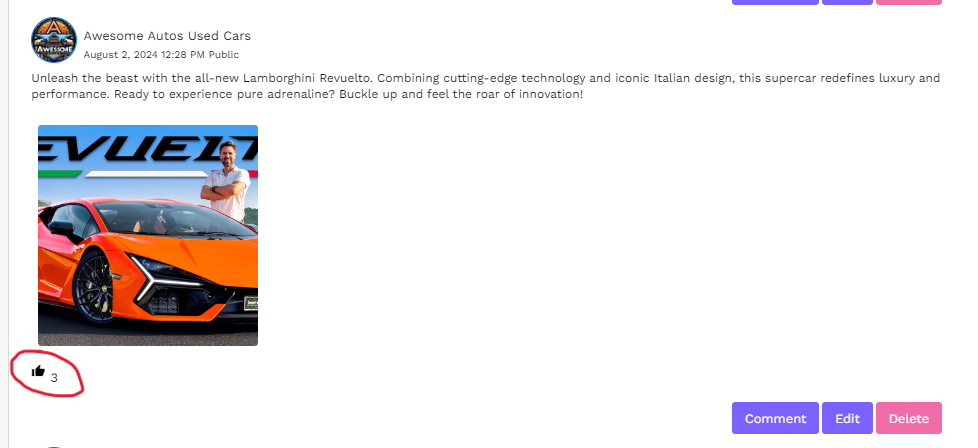
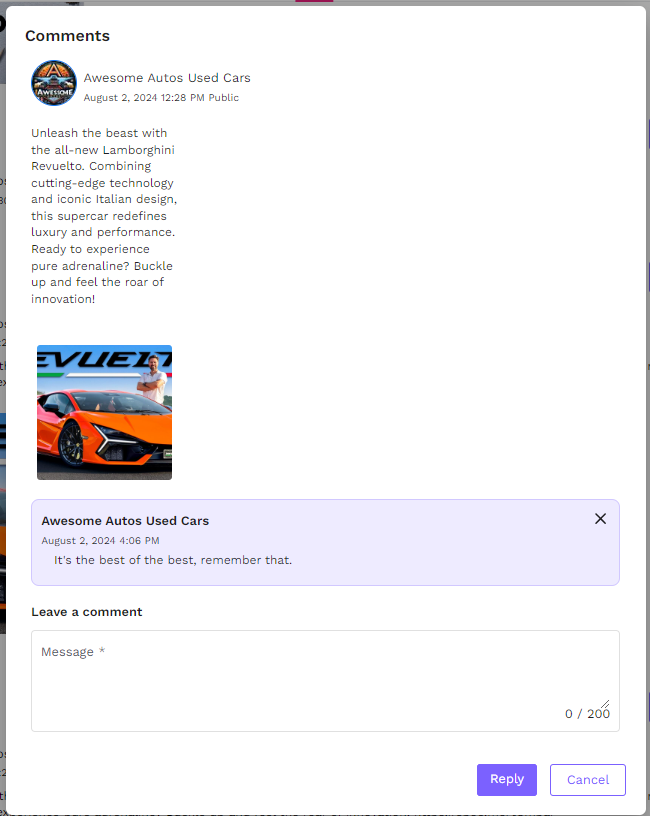
To view the Comments, simply click on the Comment button below. When you do, you’ll see a new pop-up appear where you’ll be able to see the post as well as any comments that have been posted. From here, you will be able to delete comments and post a reply using the comment field and the Reply button.
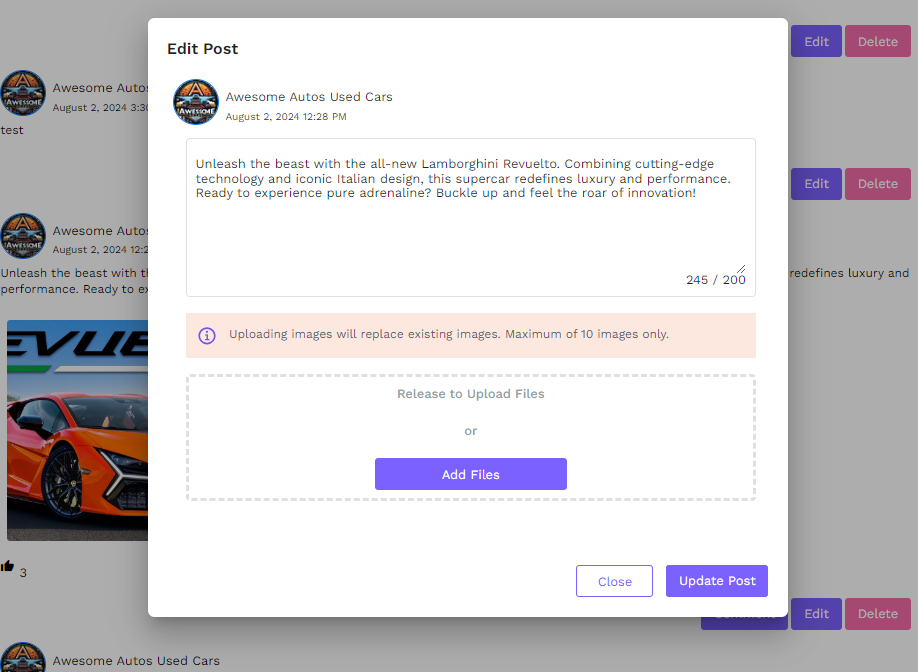
Back in the main window, you will also be able to Edit the post, adding to or removing text, and adding new images.
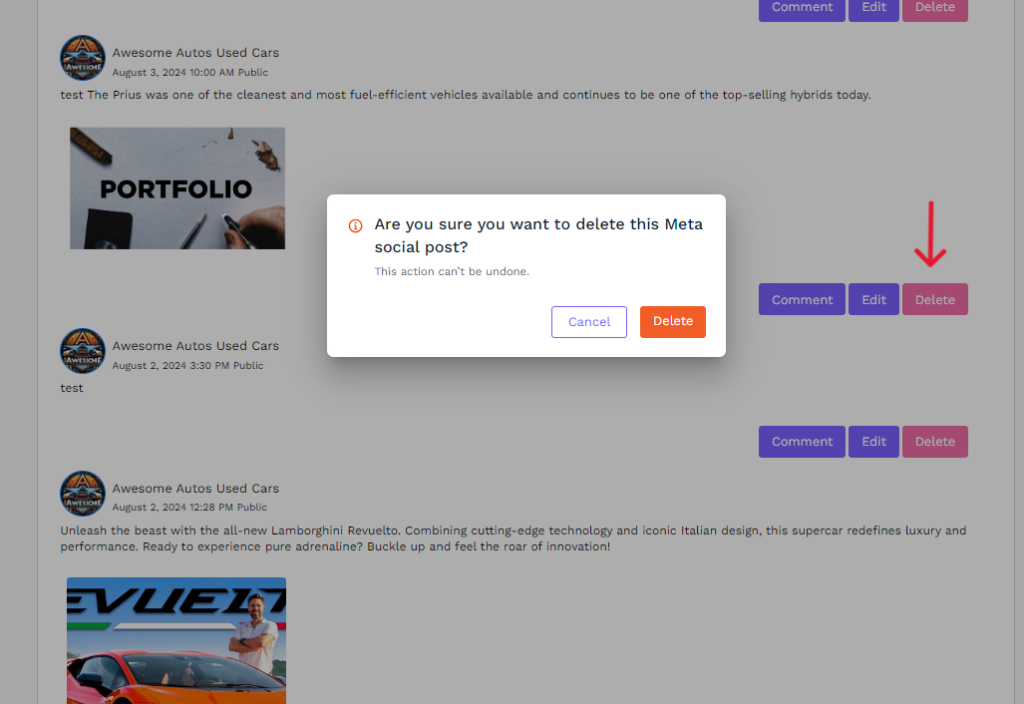
Finally, you will have the option to Delete the post from DealerVerse so you don’t have to log in to the social platform. Once you click the Delete button, you will be asked to confirm so that no accidental deletions occur.