
How can we help?
How to Request Data Deletion
How to Request Data Deletion
At DealerVerse, we take your privacy seriously and strive to provide you with control over your personal data. If you wish to delete your account and have your data removed from our system, you can follow the steps outlined below:
Step 1: Access the Help Center
- Look for the help center icon within the app interface. It is located to the right of the knowledge base icon on the right side of the menu bar at the top of the page.
- Click/tap on the help center icon to open the help center.

Step 2: Find the Data Deletion Request Form
- Once you’re in the help center, you’ll need to click on the drop down under “Select type of ticket”
- Look for the option marked “Request Deletion of Data” and click on it.
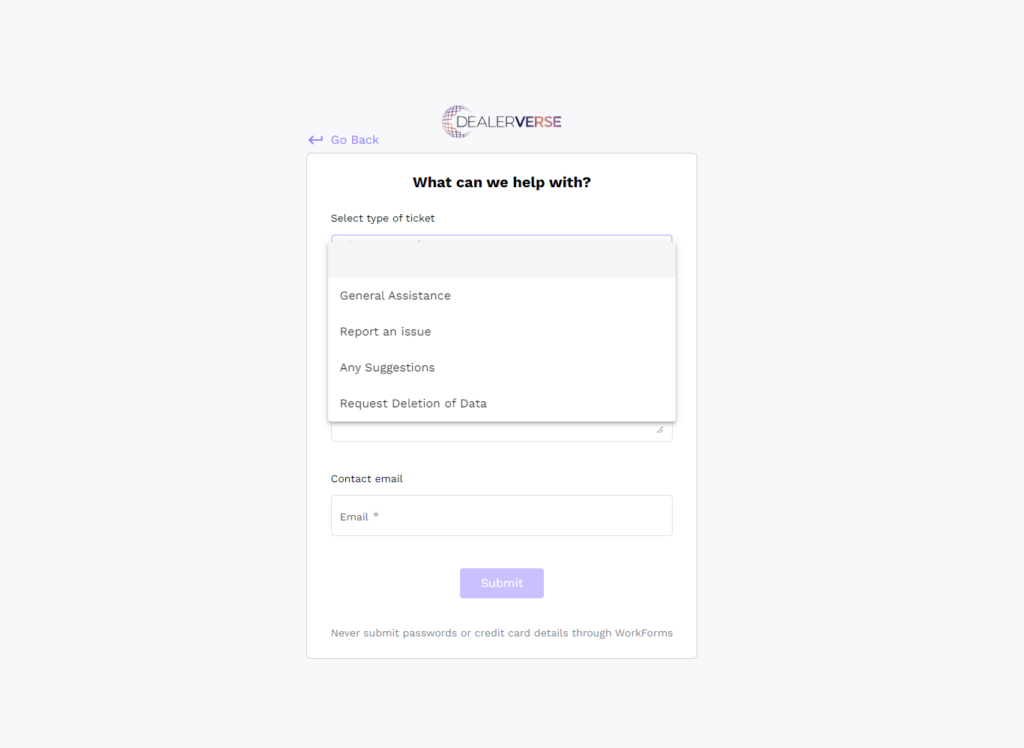
Step 3: Complete the Data Deletion Request Form
- Fill in the “Ticket Details” box with as much information as possible.
- Fill in your contact email.
- Click the “Submit” button.
Step 4: Confirmation
- After submitting your request, you will receive a confirmation message acknowledging that your request has been received.
- Our team will review your request and initiate the data deletion process. This may take some time depending on the volume of requests we receive.
Additional Information
- Data Deletion Process: Please note that the data deletion process may take some time to complete. We appreciate your patience as we work to fulfill your request.
- Contact Support: If you encounter any issues or have questions about the data deletion process, feel free to contact our support team for assistance. You can reach us through the help center and then select General Assistance.
- Data Deletion Policy: For more information about our data deletion policy and how we handle your personal data, you can refer to our privacy policy.
Thank you for using DealerVerse! We are committed to ensuring your privacy and security.